
Add this remote MCP address to your app. The first time you connect, a browser opens so you can sign in.
https://solari.sh/mcpClaude Desktop
Open Settings → Customize.
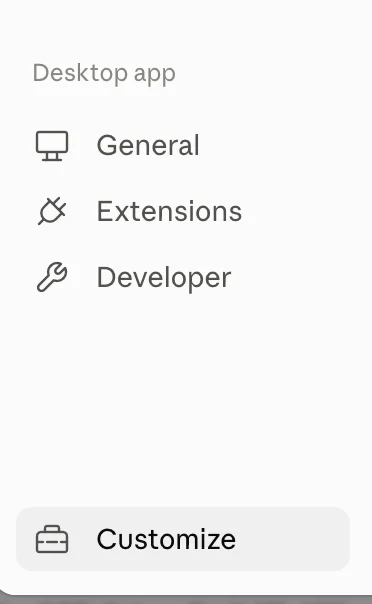
Under Connectors, press Add and enter a name and the address.
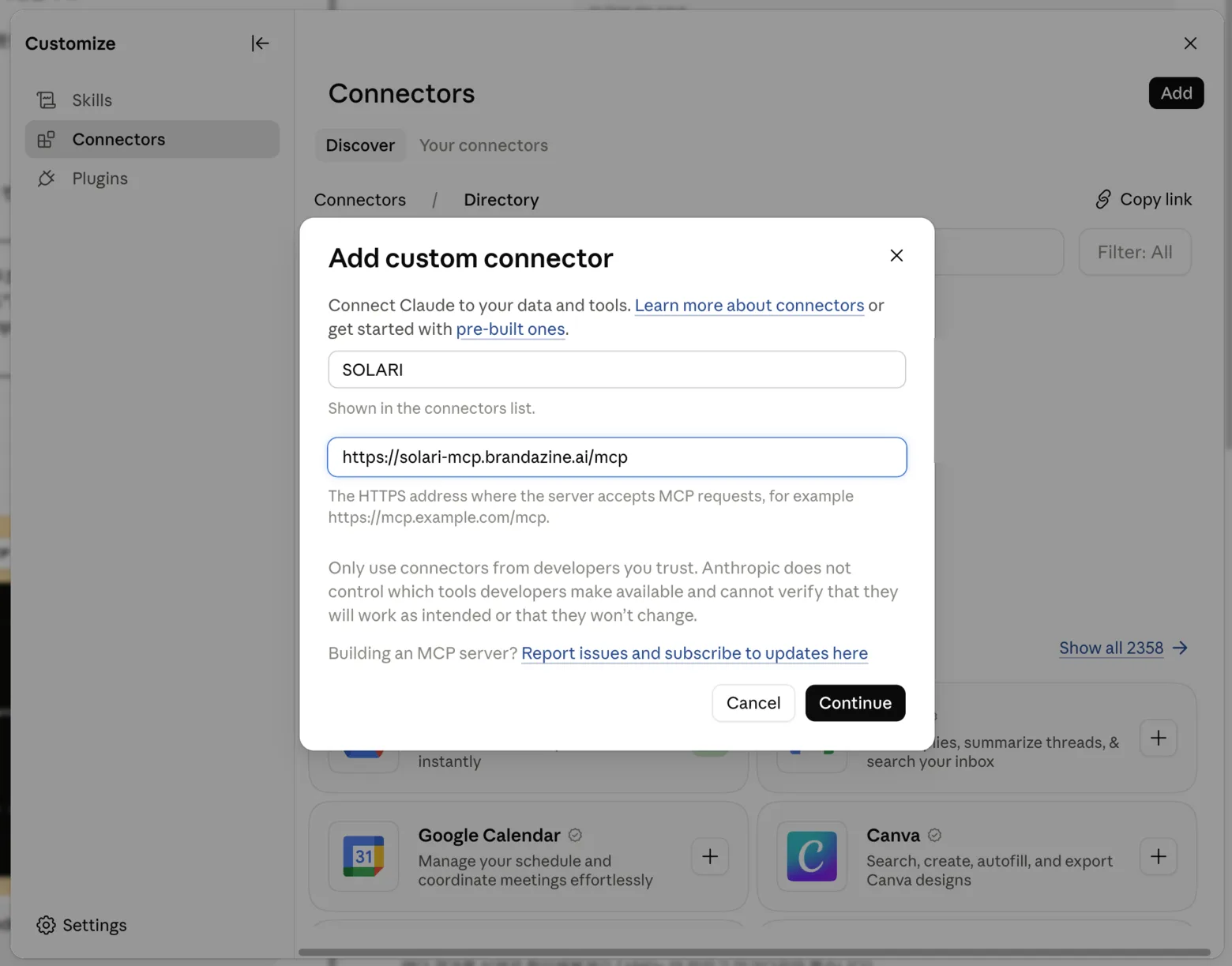
Press Continue and sign in. claude.ai works the same way.
Claude Code
claude mcp add --transport http solari https://solari.sh/mcpRun /mcp to check the connection or sign in.
ChatGPT
Add the address as a custom connector under Settings → Connectors (paid plans only), then sign in.
Other hosts
Most apps that support remote MCP take an entry like this:
{
  "mcpServers": {
    "solari": {
      "url": "https://solari.sh/mcp"
    }
  }
}
Apps that only run local MCP servers can't connect. Use the CLI with them.